Sale details
Reviewed on 5 October 2026On the web
On this page
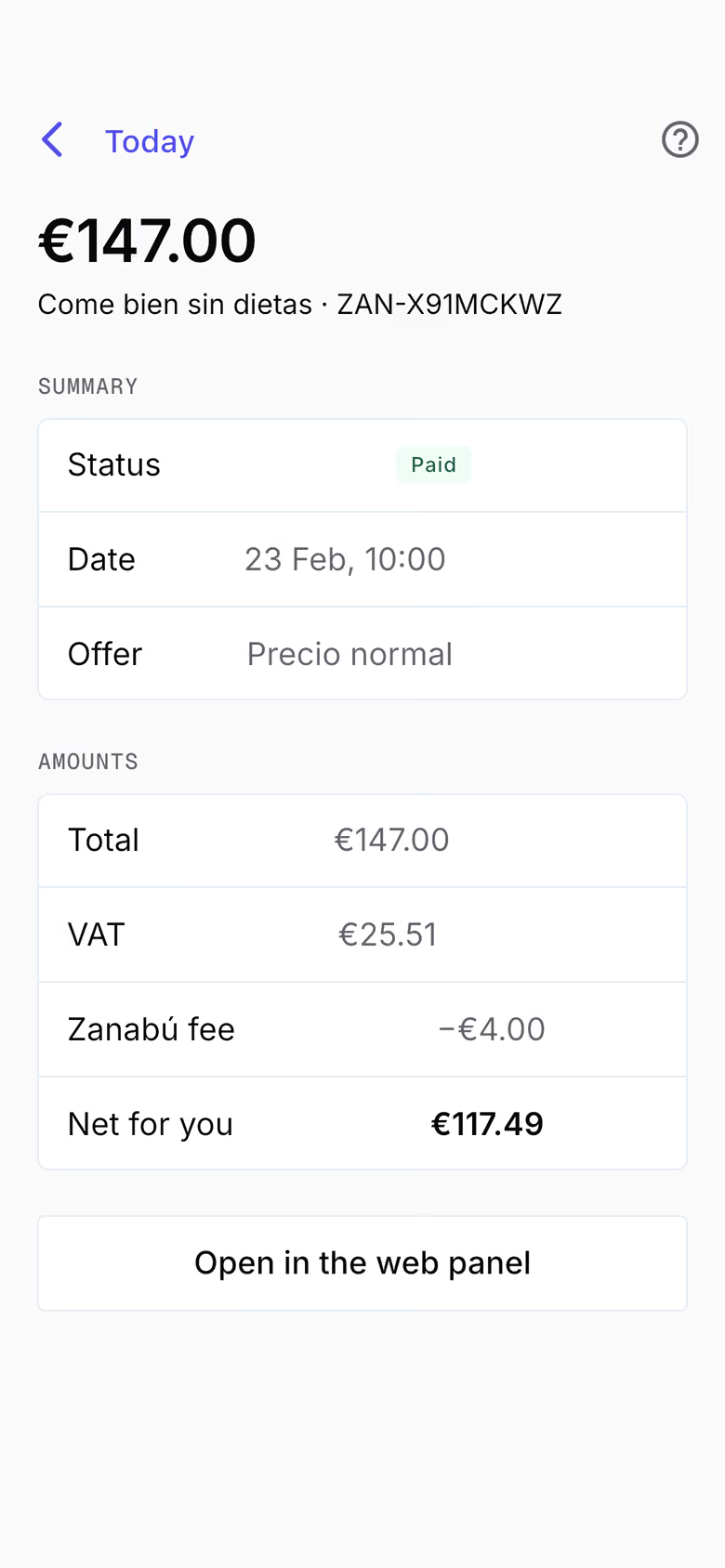
Here you see one of today's sales with its status, its date and the offer it was bought with. Below it you have how the amount is split between taxes, the Zanabú commission and what you receive.
How to get there
In Today, tap the sale under SALES. The notification of a new sale also brings you here.
What you can do
- Check whether the sale has been paid.
- See which part of the total is tax and how much Zanabú keeps.
- Open the sale in the web panel to see the whole order.
Step by step
See the whole order
- 1. Scroll to the end of the details.
- 2. Tap Open in the web panel.
Keep in mind
- In a sale paid in another currency, under the total in euros you see what the buyer paid in their currency.
- Net for you is what you receive after taxes and the Zanabú commission.
- In the web panel you also have the buyer's details, their checkout answers and what they accepted when paying.
- If you open a link to a sale of another of your businesses, the app switches to that business and shows it.
Frequently asked questions
Why is the net lower than the total?
The tax of the sale, which Zanabú declares as the legal seller, is subtracted from the total. Zanabú's fee is subtracted too. What remains is Net for you, what you receive in your account.
Was this helpful?
Need to talk to us?
If you didn't find what you were looking for, write to us. We reply within two working days.